Access your account on the following link: https://lrback.firabarcelona.com. The administrator should have received a welcome e-mail, to log-in please do so with the administrator e-mail and your Fira Barcelona password.

Please check your SPAM folder if you can’t find it, otherwise contact us directly so we can re-send it.
You can change the language settings on the top right corner.
If you forgot your password, please click on ”Forgot your password” and fill in the e-mail section as seen below. If you e-mail is in our database, you will receive a link to change the password.

In Home you’ll find all relevant information regarding the service such as: number of Leads and Scans, licenses in use and total as wel as key figures, quick insights of the usage of the service.
*If you are the administrator for more than one group, please find on the top-right corner a drop-down selector with all your groups.

In My Team you’ll find the scanners history; all scanners that have used your company code to log-in and if they’re active or not.
Accessing through the Profile on the top-right corner:
Here you can view and edit your account information as well as the exhibitor’s details for attendees. Please keep these exhibitor details generic, as they will be shown to visitors that you scan with our service on the official event App. To view an example of how the information will appear, click here.

In the Licenses tab, you’ll be able to view and share your company code. The company code is your access to the App in order to be able to log-in, please make sure you share it with your team prior to the event.

Find the list of scanners, active and non-active, that have used the company code to log-in on the App. To log-out a scanner, please kick on the first action.
If you purchased any rental devices to go with your licenses, you’ll be able to see the amount in Rental devices as well as plan their delivery if you haven’t already or wish to change it.
If you wish to add more licenses to your account, please click on ”Add licenses” to be redirected to your event’s Fira Store where you will be able to purchase extra licenses.
Create and customize your Surveys inside our back-end. You will also be able to set one survey as mandatory, which will prompt the survey after every scan.

Click on ”New survey” to be redirected to the survey creator:

Types of questions featured:
– Simple and multiple choice
– Small and long text
– Date
Add answers to your questions and mark them as mandatory. Save the survey to finish creating it.
*Editing surveys that have been already completed by an attendee is limited. In order to maintain data consistency, it is not allowed to delete any questions or answers or to change any question type.
After scanning a contact with the App you will be able to send them documents such as catalogs or product presentations onsite. In order to do that, upload your documents here to be able to use them on the APP. You can upload files of up to 5MB with a limit of 10 documents.

The e-mail containing the documents and links will be the Lead retrieval default e-mail unless changed on ”Edit Template”. You can create your own template to use when sending documents:

Save to create your own template or click ”Reset to default template” if the custom template won’t be used.
Create tags to be able to use them on the scanned attendee for easy post-event filtering and better-quality leads.
Customize the display order of the tags to make them easier for your team to use in the App at the stand.
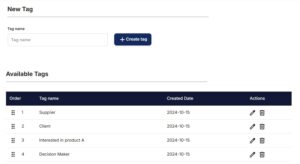
*Lead retrieval offers 4 default tags that you can use or delete if not needed. You can also create tags as you go from the App.
Here you will find all your Leads, Scans and Meeting Rooms scans in one place.To export the Leads into an excel file, please click on ”Export Leads”.
The Leads export will have one line per visitor, and will not show which scanner name owns the Lead.
The Scans report will show you every time a visitor was scanned as well as all of the scanner names. We highly suggest downloading both files.
If used, the Meeting Rooms report will show the Lead information as well as the meeting name and the scan type (in or out).

To quickly view information about a Lead, click on their line in the list:

Here you will find all the professional details, provided by registration of the event, of the visitor you have scanned. As an administrator, you’ll be able to add Images, tags, change the survey answers, add a rating or notes.
Please take into account that the information shown is collected from the latest scan. If a scanner updates what the administrator changed on the web portal, it will be lost and replaced.
Once the excel is generated, please go into Downloads and download the latest report that you just exported:

Simply click on the ”Arrow” in the actions tab to download the excel file.
Create an automatic welcome e-mail that you can send to your scanned contacts on the App. This e-mail will only be sent the first time the visitor is scanned.
Enable the welcome e-mail and customize it with a subject and a body.

We advise that you keep the e-mail simple and, if possible, create it directly on our web portal.
To disable the welcome e-mail on specific scanners you can do so through the Licenses tab, selecting the scanners and disabling the welcome e-mail function by unchecking the checkbox.

The Web Portal offers leads statistics and reporting with many options and filters inside the Reporting tab.

Filter by date or/and user and choose below how to visualize the information (by tags, by hour…)
Enabling this option allows you to force a privacy policy confirmation dialog after scanning. This way you can allow the visitor to log their acceptance of your privacy policy and their agreement to their data management.
Write a summary and add an URL, which can also be sent to the visitor as an e-mail, and configure up to 4 checkboxes to use.

You can also force the pop-up to appear after scanning or after accessing the detail leads.Import your previous settings
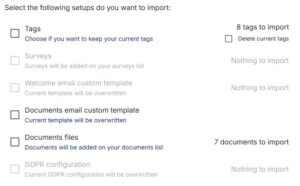
If you have used Leadretrieval in a previous edition of the event, you can quickly import your past configuration of:
– Documents
– Custom tags
– Surveys
– Templates
– GDPR
Log in to the Web Portal and go to the section you want to configure (documents, tags, surveys, templates, or GDPR).
Click the “Import” button.

Make sure the group from which the settings will be imported is correct.
Select the content you want to reuse.